
Please make sure to read this guide first: How to add a new novel
1. Open the Chapter Editor
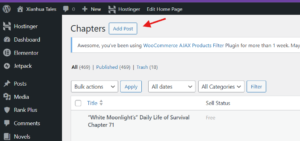
On the left-side menu, look for “Chapters.”
Click “Add Post” to open the Chapter Post Editor.

2. Format the Chapter Title
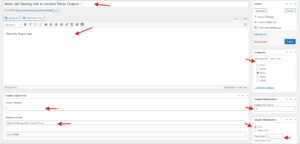
The title of each chapter must follow this format:
Novel Name + Chapter Number
Example:
If your novel is Rebel Girl Raising Hell in Ancient Times and you are publishing the first chapter, the title should be:
Rebel Girl Raising Hell in Ancient Times Chapter 1
3. Select the Correct Category
On the right side panel, search for the category you created when adding the novel and make sure it is selected.
4. Set the Chapter Number
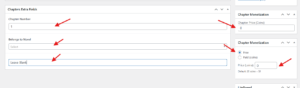
In “Chapters Extra Fields,” ensure that the chapter number matches the number in the title.
Example:
Title: Rebel Girl Raising Hell in Ancient Times Chapter 5
Chapter Number Field: 5
5. Chapter Monetization
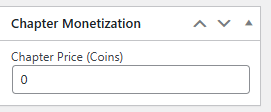
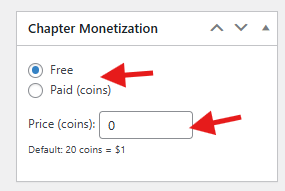
In Chapter Monetization, make sure it is always set to ZERO.
Important:
This must always remain set to 0. Even if you decide to sell the chapter. This must ALWAYS REMAIN to 0.
Locking Advanced Chapters
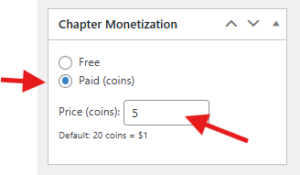
After confirming that Chapter Monetization is set to Zero, you can lock advanced chapters if you want to sell early access.
For example, starting from Chapter 15:
-
Set Chapter Monetization to “Paid (Coins)”
-
Enter the price of your choice
.
Publishing the Chapter
Once everything is set correctly, you can publish the chapter.
-
Chapters 1–10 must always remain FREE.
-
Advanced chapters must eventually be unlocked for free readers.
-
Weekly unlocking of advanced chapters is highly recommended.
Continue to read: how to unlock a chapter